
Documents
Reading files
Section titled “Reading files”X6’s model reads text, so every file is turned into text on your computer before X6 sees it:
| File | How it’s read |
|---|---|
| Text layer; scanned pages by OCR | |
| Images | OCR |
| Word, RTF, ODT | Converted to text |
| Excel, PowerPoint | Sheet by sheet, slide by slide |
| HTML | As source, so X6 can edit existing pages |
| Text, CSV, JSON, code | As is |
search_files searches the text of every workspace file and reports the page, slide, or line.
Creating documents
Section titled “Creating documents”create_document (it asks for approval) turns Markdown into Word, PDF, HTML, RTF, ODT, Markdown, or plain text, and
turns rows of data into Excel or CSV. Word files get real tables. Images referenced in the Markdown are embedded in
the finished file. Each created file gets a download link in the chat.
Editing with X6 in the editor
Section titled “Editing with X6 in the editor”Documents open in a built-in editor. In Edit mode, the editor has an X6 panel.
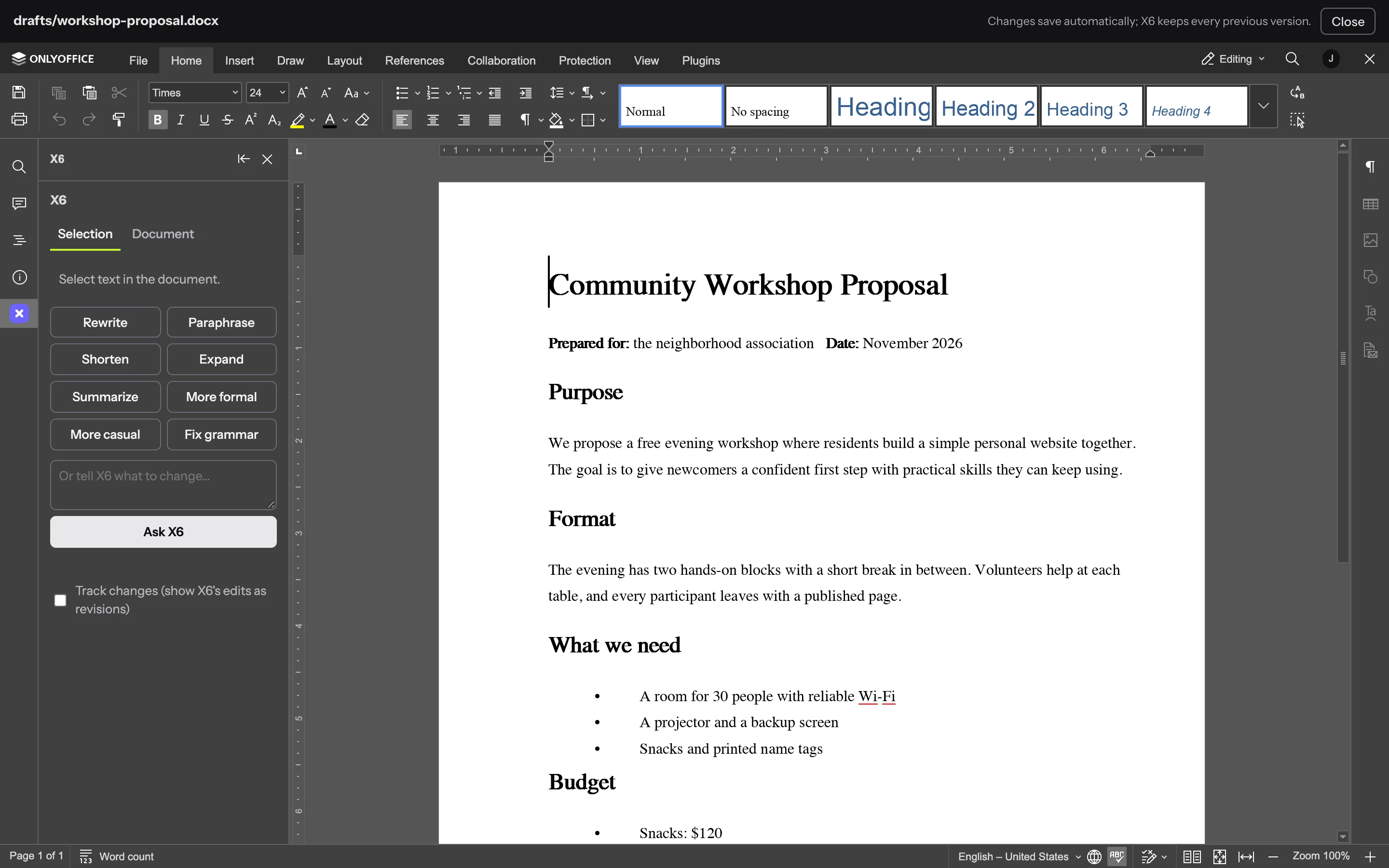
Ask X6 about a selection
Section titled “Ask X6 about a selection”Select text and right-click Ask X6: Rewrite, Paraphrase, Shorten, Expand, Summarize, More formal, More casual, Fix grammar, or your own instruction.
- Review. X6’s suggestion appears as a word-by-word diff.
- Choose. Replace the text (optionally as a tracked change), insert the suggestion below, or add it as a comment.
Nothing in the document changes until you choose.
Talk about the whole document
Section titled “Talk about the whole document”The panel’s Document tab is a conversation about the whole document, such as “tighten section 2” or “add an executive summary”. X6 proposes edits, each shown as a diff with Accept and Reject, plus Accept all. Turn on Track changes (remembered) to make X6’s edits tracked revisions.