
A tour of the workspace
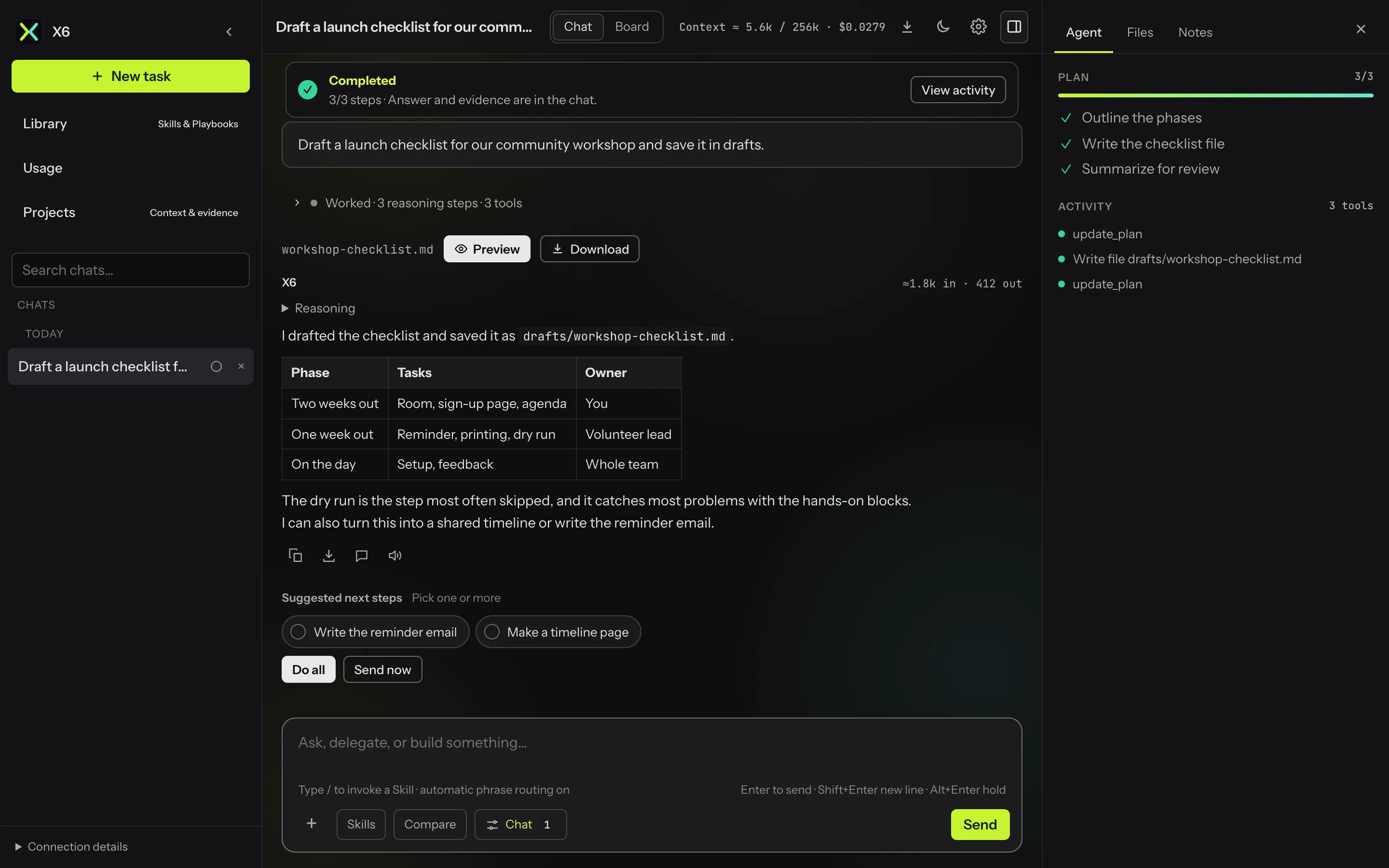
The page is laid out as a command center: navigation on the left, the conversation in the middle, and the agent’s plan and activity on the right.
Sidebar
Section titled “Sidebar”New task, Library (Skills and Playbooks), Usage, and Projects, followed by your chats. You can search chats by title and pin chats on the current device. On wide screens the sidebar can collapse to a narrow rail; on phones it slides over the page.
Conversation
Section titled “Conversation”Replies stream in smoothly. Scrolling up keeps your reading position while X6 is still writing. Each reply has buttons to copy it, download it as Markdown, or quote it in your next message.
When X6 offers next steps, they appear as buttons under its latest answer. Pick one or more, then Do all to put the follow-up in the composer for review, or Send now.
Composer
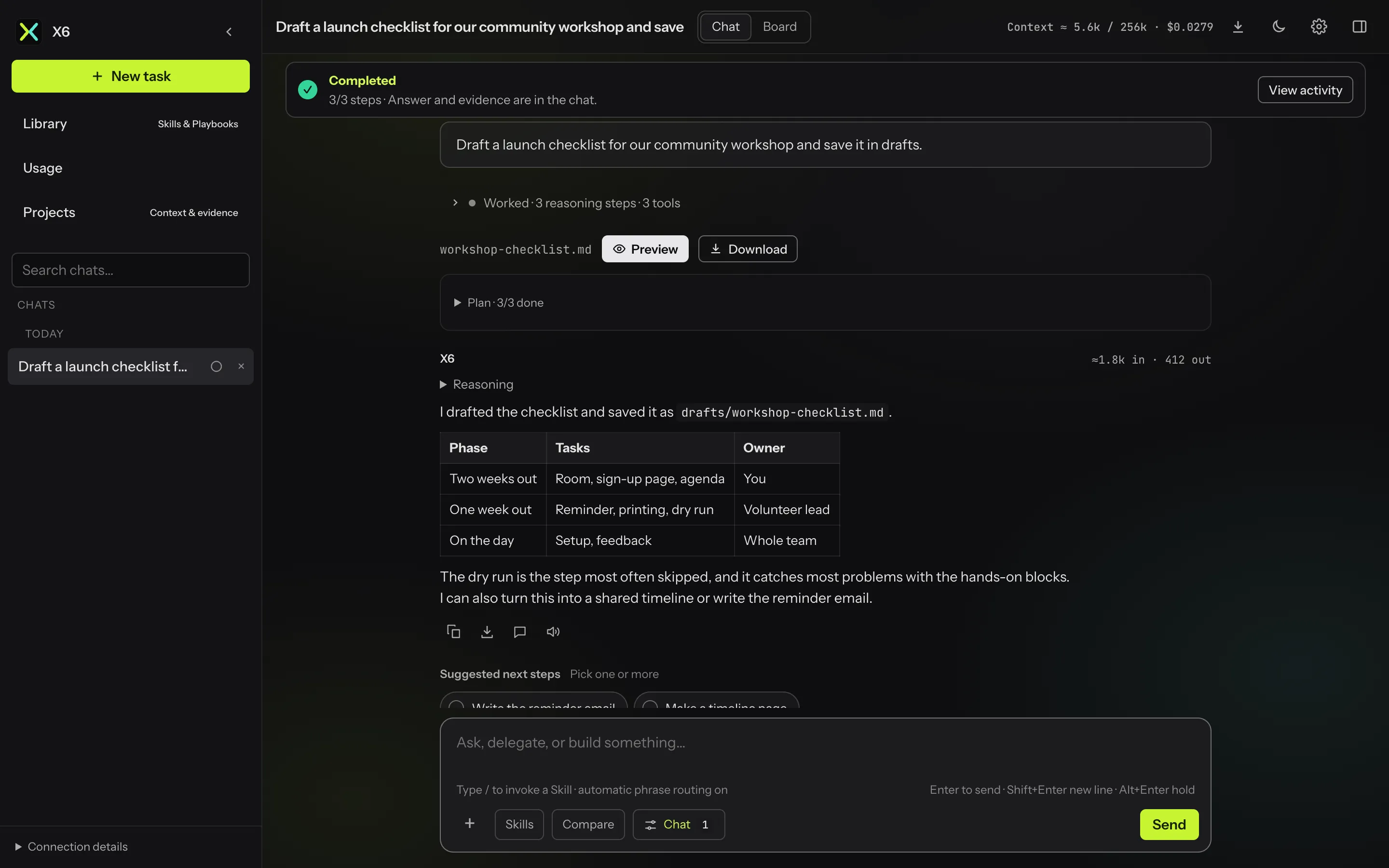
Section titled “Composer”The composer keeps Skills, Compare, the Chat/Build options, and Send in view. The + menu holds Attach,
Conversation mode, Dictate, Tools, and Hold. Type / to call a Skill by name.
Agent panel
Section titled “Agent panel”The panel on the right has three tabs:
- Agent: the plan with a progress bar, anything waiting for your approval, and the latest task’s activity.
- Files: the workspace, with download, upload, and preview.
- Notes: notes shared between X6 and its sub-tasks for this chat.
Board view
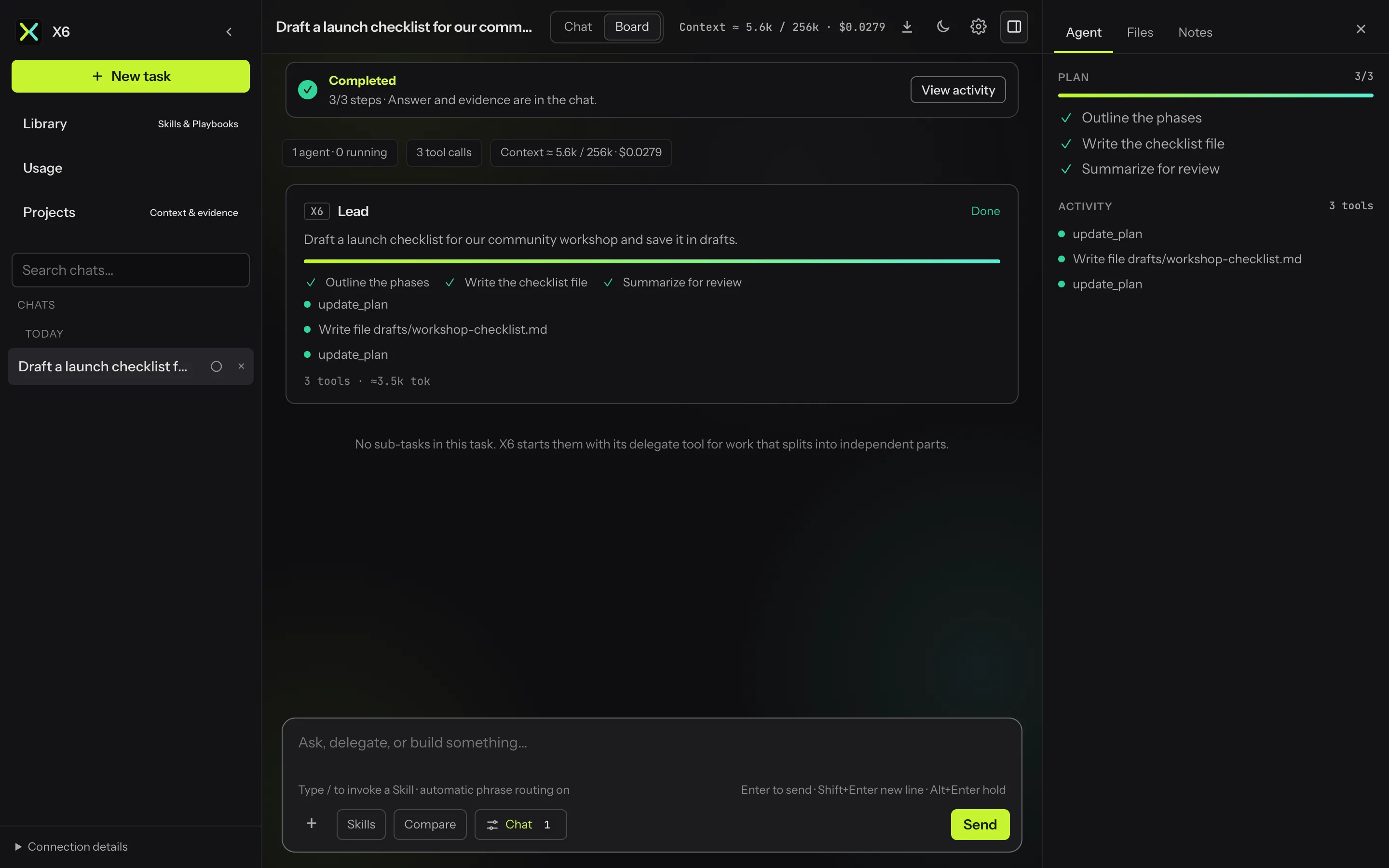
Section titled “Board view”Switch from Chat to Board in the top bar to see one card for the lead agent and one per sub-task, each with its status, recent tools, and token use. You can approve or deny a waiting step right on its card.
On a phone
Section titled “On a phone”